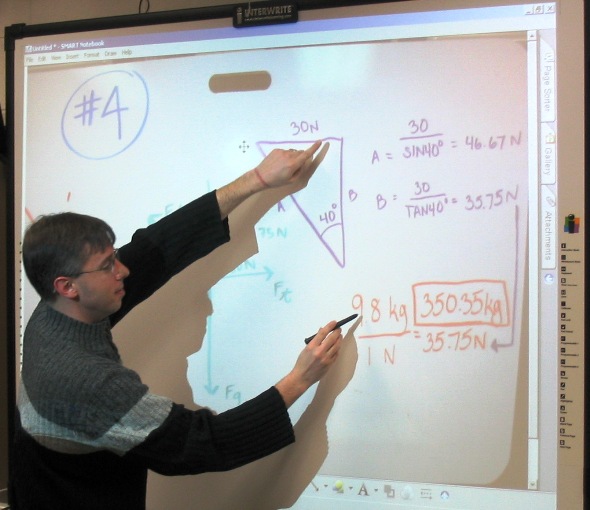
My experience with an interactive board

Interactive BoardAt the start of the school year I was fortunate to have an Interwrite Board installed in my classroom. The Interwrite Board is an interactive board (IB) that works in concert with an LCD projector. Another well known IB product line is produced by Smart Technologies. Both allow teachers to control a computer by marking on the board. My board uses a pen that doesn’t leave behind real ink but it can allow me to draw, move objects around and control any software on my computer.

Here’s how I’ve been using it so far:

  1. demonstrating software: Teaching science demands the use of software for data collection, data analysis, graphical analysis, and video analysis. The IB has helped students become familiar with new software. They seem to pick up new software much faster once they had a chance to manipulate and control it with the interactive pen.
  2. practice problems go digital: My students in physics often work in small groups to solve and then present assigned problems using a white board and dry erase markers. This process has always had tremendous pedagogical advantages. Now the process has improved even more because I take pictures of their white boards and project them onto the IB for discussion.
    There are several advantages to this process:

    • the white board is bigger
    • the work is saved for continuing the next day, an absent student or review at a later date
    • while the students can annotate their white board in front of class with the interactive pens, I can interact from the back with mine (I also have the AirLiner from Smart Technologies)
  3. Create Podcasts: Work done on the IB can be recorded (audio and video) and posted to the web for further discussion and review. You can see examples of my videos here.

Here are a few reasons I like using the interactive board:

  1. I can look at my audience when using it. In the past, when I needed to demonstrate software for example, I was forced to look at the computer screen. I wasn’t looking where the students were looking. There is a disconnect here that is similar to the one when you are staring at the top of an overhead projector while your students eyes are focused behind you. Now all of us are looking at the same thing.
  2. The ability to save, go back and start over. I save so much time with the IB because I don’t have to erase things. If problem seven brings up new questions in problem one I can pull up question one in a flash. New questions come up? Click new page and off we go. It’s like an endless chalkboard that doesn’t show the faint, half-erased work of the hours before. I still have a chalkboard- over twice the area of the IB. I use this for things I want to keep up long-term, quick calculations for students in lab, and of course the “please see me” notes.
  3. It is a better drawer than me. I use the lines, shapes, clip art and endless colors to drive home our discussions. When I teach vectors, the colored arrows can be copied and slid around to explain things like vector addition. This is a huge time saver and something I never could have done with chalk.
  4. Students are eager to use the interactive board and feel privileged to have it in their classroom. I know that these sensations will probably subside as the technology becomes more commonplace but right now I have students asking to use it. Having students proud of what their school is providing is a good thing.

Santa violating data privacy laws

SantaIf Santa stops at your house, you may want to inquire about his privacy policy.  A recent report has raised several serious questions about the data Santa collects on our children.

Santa keeps a list of every child in the world, which he uses to track if they’ve been naughty or nice during the previous year. It’s unclear whether Santa uses data from credit bureaus and other third parties or if he relies exclusively on his own observations.

To date, Santa hasn’t disclosed the privacy safeguards for this data, a possible violation of several laws.

It’s also unknown how long Santa keeps this information. British law says that organizations must not keep data longer than necessary, which would require Santa to destroy the data he collects on December 25, although Pinsent Masons argues that Santa could keep this information for several years to protect against toy-related lawsuits. If the data Santa collects includes health (“I broke my leg this year”) or financial data (“our family can’t afford new toys”), he could be violating U.S. data laws as well.

Of course, Santa has been sneaking in and out of homes for centuries. Even if Mr. Claus is charged, I doubt we could ever apprehend him.

By the way, scientists have been investigating Santa too!

Enjoy the break.  See you in 2008!

21st century skills- show us your best

Take a trip back in time in the archives of Google News and you can find all sorts of papers, books and headlines with the following themes about education:

  • education needs to be more relevant to life
  • we need to foster more creativity in the classroom
  • we’re failing to teach our students technology skills
  • students aren’t asked to think critically
  • the U.S. will fall behind because of our education
  • student learning needs to be more hands-on

Sound familiar? Talking about the future of education seems like a national pasttime that often predicts gloom and doom scenarios.

The craze for the past five years has been the idea of teaching 21st century skills. Many people have made a career by talking and writing about these new skills. But take a look at them. Is there really anything new here? The Partnership for 21st Century Skills lists media literacy, critical thinking, creativity, collaboration, and civic literacy as just a few 21st century skills that will “…align classroom environments with real world environments.”

But haven’t these skills always been taught in school? The only new thing on the list seems to be global awareness. However, this topic has been misrepresented with nationalistic chatter that tried to scare every teacher and student with images of construction companies in China and India.

I don’t think that we should ever stop stressing the skills that are now being called 21st century skills. I just find it insulting to consider that these skills are new. This is an insult to all the excellent educators who have made the U.S. what it is today.

The fear mongering also needs to stop. We are not going to motivate our students with a laundry list of over-hyped statistics.

The best way to improve education is to improve the teacher in the classroom. Instead of providing examples of what should be done, show us the real thing. Join a professional organization and present lessons that worked in the classroom. Get on a social network (like Twitter or Facebook) and share a successful activity.

Let’s make showing off our finest teachers, and more importantly their work, the real 21st century skill.

Journal via text messaging during field trip

Last week I took my physics students on a field trip to the Yerkes Observatory and the Fermi National Accelerator Laboratory.  This is the forth year I’ve done this trip, and each year I offer the students a variety of assignments to pick from.

This year I added text messaging as one of the assignments.  Students used their cell phone to journal about things they saw while on the trip.

Students send their messages to an account they created at Twitter.com. Twitter is a micro-blog that allows you to post messages (up to 140 characters long) from the web or from your cell phone. The site also allows you to follow other people’s posts; this makes Twitter an impressive networking tool. (Note: there are many teachers exchanging ideas on Twitter; you can find me at: twitter.com/basler.)

Twitter on field trip

I took advantage of the social networking side of Twitter by setting up an account that followed all my students as they posted messages during the trip.  The students who couldn’t go on the trip were able to watch their classmates add messages in real time.

Here is a sample of the messages posted by my students.

You should keep a few things in mind if you plan to use Twitter.

  • Students may incur fees when texting from a cell phone. My assignment wasn’t required; student could pick another assignment if they didn’t wish to send text messages.
  • Twitter is blocked at many schools.  My students had to set up their accounts at home.
  • Make sure your students set up and test the service. I had all my students get things working before the trip.
  • As always, remind your students to not disclose personal information online. For example, all my students used fake names for their username at Twitter.

Library of Congress will do your research

A few weeks back I saw a little blub in PC Magazine on the Ask a Librarian website provided by the Library of Congress. The site provides an online reference service that promises to reply to your question in just five business days.

Ask a Librarian

I decided to give it a try. My question? Which U.S. college has educated the most Nobel Laureates? I thought this wouldn’t be something that could be answered with a simple Google Search.

Three days after I submitted my question, I received their reply:

I have not found a comprehensive list of Nobel Laureates by undergraduate or graduate affiliation. The top schools in the United States for total Nobel Prizes awarded are: Harvard, Stanford, M.I.T., CalTech, and Columbia, and tied with Berkeley is University of Chicago.

But the information didn’t stop there. They sent a myriad of data (see it yourself). Everything from breakdowns by category to links to where the information can be found.

The next time I need some research done, I think I’m going to put the Ask a Librarian service to work.

Find free book online; Audio-books too!

Beowulf the MovieBeowulf opens in theaters this Friday. I vaguely remember reading this in high school my Senior year. Since Beowulf is in the public domain, I decided to refresh my memory of the story by reading it online.

There are several great sites that offer free books online. Here are a few that I’ve come to love:

Create stop-motion videos and learn physics

Inspired by the most recent Sony Bravia commercial, I decided to have my physics students create stop-motion videos for a Halloween themed project.

Students were asked to create a video that:

  • was at least ten seconds
  • contained at least two seconds of constant acceleration
  • had a Halloween theme

I gave the students a handout with guidelinesrubric and some suggestions for a successful project. Students created the videos using Windows Movie Maker and uploaded them to Brightcove.tv (YouTube is blocked at our school). I used Jing to provide students with screencasts that explained how to use Movie Maker and Brightcove.tv.

After the videos were created, students used a video analysis program (LoggerPro) to analyze and confirm the acceleration.

I wasn’t sure what to expect when I assigned this project but I was truly shocked by all of the amazing videos that my students produced.

Here is an example:

See all the videos here.

Bus routes and Google Maps help teach physics

Transit MapMy freshman have been learning about speed, velocity and displacement. I’ve also been trying help them brush up on their unit conversion skills. It’s tough because you run out of real-life examples. I can only do so many labs with toy cars.

To drive home the lesson, I had students use Google Maps to map out different bus routes in our area. Students were paired up and assigned a route. With help from our local transit system’s website, each pair had to:

  • map out the route with a line (this gave them the route’s distance)
  • find the average time needed for the bus to make a complete loop
  • calculate the average speed of the bus
  • display the results on the map

Bus StopsStudents with extra time could earn more points if they placed a pin at each stop and entered the arrival times in each stop’s description. They could also calculate the average speed from stop-to-stop.

The project was a success and the students seemed to enjoy it. The class was a full of discussions about things like: which bus goes by which landmark or which bus is always late. One group even brought in a paper map to use as a guide. It was fun to watch the students work.

All the maps were shared using the embed tags and students could see all the routes on one big map. The project made my lesson plan for the following week much simpler since I now established an example that everyone had an understanding of.

Here is an example map.

Organize your Outlook inbox with colors

Like almost everyone these days, I get lots of email. My work inbox is overstuffed with internal memos, notes from parents and spam.

I like to sort my messages by color coding them based on a few parameters. For example, I make all messages that are sent only to me green. Messages from the principal are colored red.

Color your inbox

We have one teacher in my build who is a traveling teacher. She sets her inbox to display messages in the color that represents the school from which they were sent. So all messages from East High are red and all messages from West High are orange.

To set this up in Outlook go to the Tools menu choose Organize and then select the “Using Colors” section, hit the “Turn on” button next to “Show messages sent only to me in Red.”

Below is a step-by-step video to help you get started:

[revver 357843]

For more flexibility, click “Automatic Formatting” in the upper right corner.